
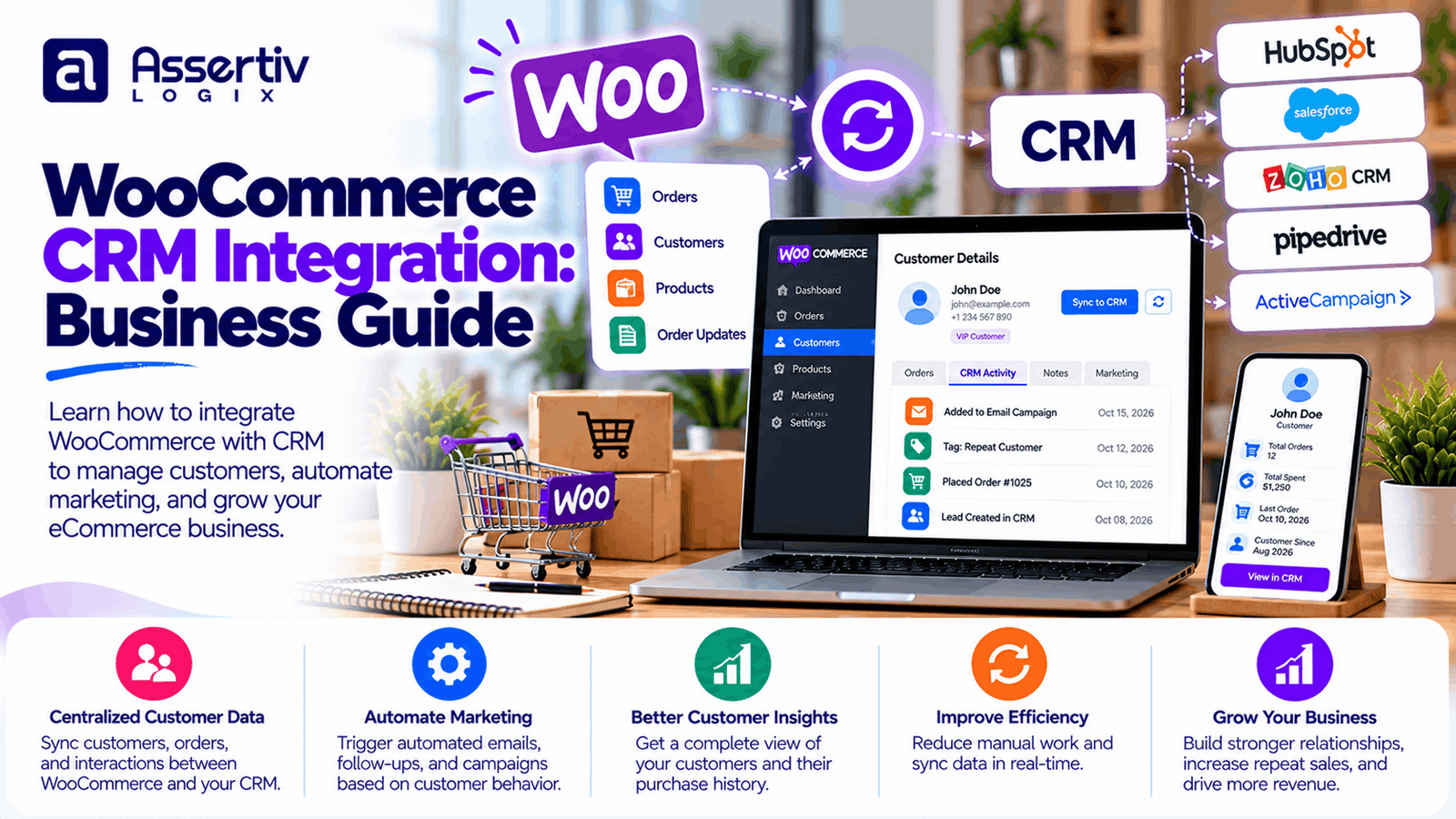
WooCommerce CRM integration helps an online store connect customer information, orders, purchase history, sales activities, and marketing campaigns in one coordinated system. Instead of switching between your WordPress dashboard, spreadsheets, email platform, and sales tools, your team can use connected customer data to deliver more relevant experiences and manage relationships more efficiently.
For growing eCommerce businesses, this connection can make a measurable operational difference. Your marketing team can follow up with customers who abandon their carts, your sales team can identify high-value buyers, and your support team can review relevant order details without manually searching multiple systems.
The right setup depends on your store’s size, sales process, existing software, and customer communication strategy. This guide explains how WooCommerce CRM integration works, which platforms you can consider, how to plan an implementation, and what to check before connecting your store to a customer relationship management system.
What Is WooCommerce CRM Integration?
WooCommerce CRM integration connects your WooCommerce store with a customer relationship management (CRM) platform. The integration transfers relevant information between the systems so your business can manage customer relationships using more complete and up-to-date data.
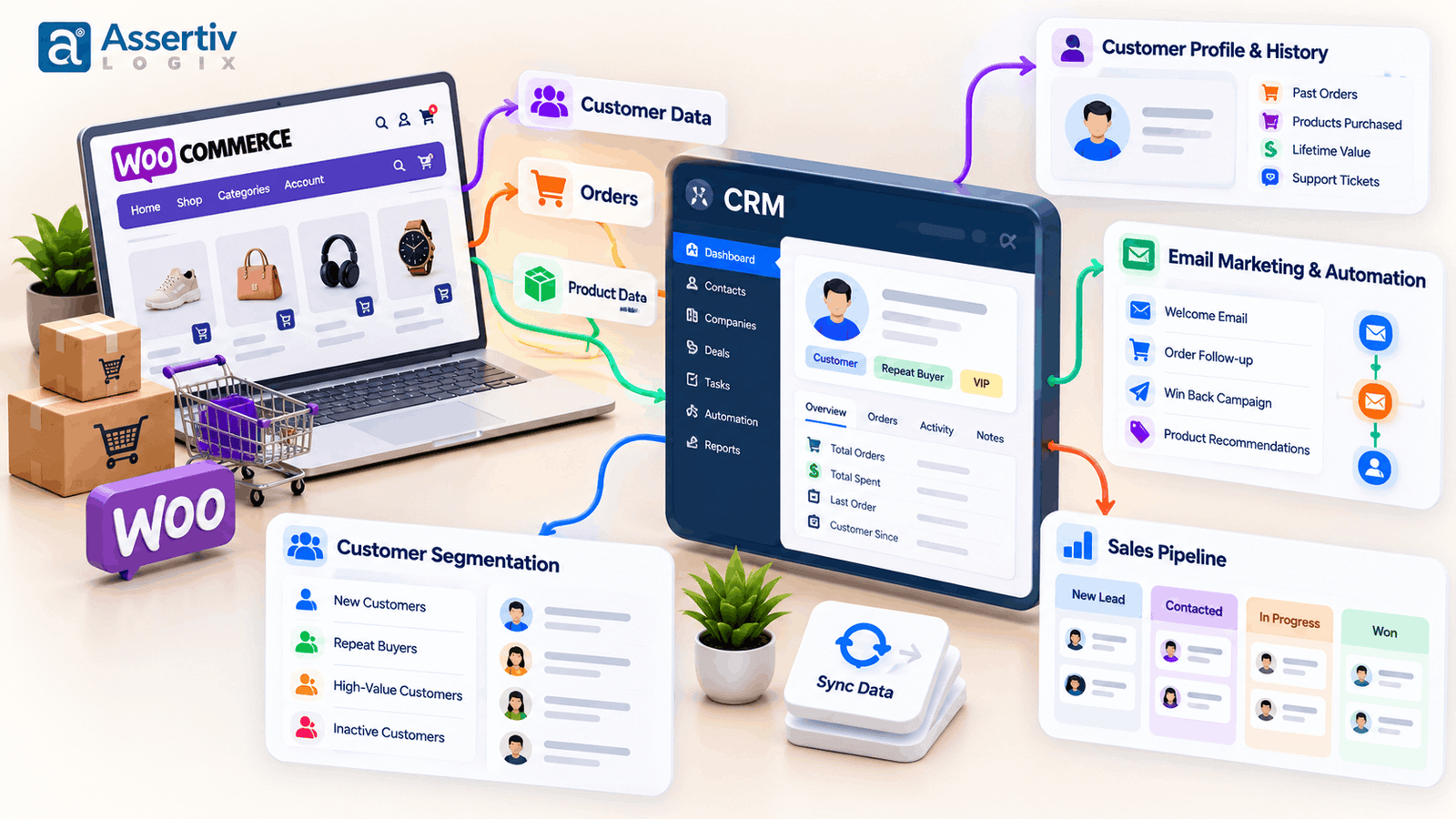
Depending on the CRM and integration method, synchronized information may include:
- Customer names, email addresses, phone numbers, and account details
- Order history, purchased products, order totals, and order status
- Customer lifetime value and purchase frequency, where supported
- Abandoned-cart events and checkout activity, where supported
- Marketing consent and communication preferences
- Customer service interactions, sales notes, and follow-up tasks
- Product interests and customer segments
Not every integration supports all these fields automatically. The available data depends on the CRM, connector, permissions, and custom mapping rules. Before choosing a solution, identify the customer information your business actually needs.
Why Do WooCommerce Businesses Need CRM Integration?
WooCommerce can manage online products, checkout, orders, and customer accounts. A CRM adds tools for organizing customer relationships, sales activities, segmentation, and follow-up communication. Connecting the two can reduce manual work and help teams make better use of store data.
1. Build a centralized customer view
Customer information often becomes scattered across order records, email marketing tools, spreadsheets, and support conversations. A CRM can bring relevant details together so staff can understand a customer’s relationship with your business more easily.
For example, a sales representative may be able to see a customer’s recent orders, previous interactions, and open follow-up tasks in one place. This is particularly useful for businesses that sell higher-value products or serve repeat customers.
2. Automate customer follow-ups
Manual follow-ups are difficult to manage when order volume grows. A properly configured integration can trigger workflows based on customer or order events.
- Send an appropriate post-purchase message after a completed order.
- Notify a sales representative when a high-value order arrives.
- Create a follow-up task when a wholesale customer requests a quote.
- Start a replenishment reminder when a customer may be ready to reorder.
- Flag an inactive customer for a re-engagement campaign.
Each workflow should reflect your business process and communication permissions. Avoid sending unnecessary messages simply because an automation is available.
3. Improve customer segmentation
Customer segmentation lets you group buyers according to meaningful characteristics. With the right data available in your CRM, you can create segments such as first-time customers, repeat buyers, wholesale accounts, high-value customers, and customers interested in a particular product category.
These segments can support more relevant campaigns and sales conversations. For example, a returning customer may receive a loyalty offer, while a wholesale buyer may receive a message about bulk purchasing or account support.
4. Reduce repetitive administrative work
Without integration, staff may need to export order files, update customer records manually, and copy information between systems. Automated synchronization can reduce this effort and lower the risk of data-entry mistakes.
However, automation still needs monitoring. Duplicate contacts, failed sync jobs, inconsistent field formats, and API errors can cause problems if the integration is not tested and maintained.
5. Understand the customer journey
When the CRM receives reliable order and customer data, your team can better understand how buyers move from their first interaction to repeat purchases. Depending on your analytics setup, you may be able to evaluate campaign performance, customer retention, lead-to-sale conversion, and revenue associated with specific customer segments.
Attribution is not automatic or always exact. Tracking parameters, consent settings, reporting rules, and the limitations of each platform affect how accurately revenue can be connected to a marketing campaign.
How WooCommerce CRM Integration Works
A typical integration uses a connector plugin, an official integration, an automation platform, or a custom API connection. The chosen method determines how information is transferred and which events can trigger actions.
- Customer activity occurs: A shopper registers, places an order, updates an account, or performs another supported action in WooCommerce.
- The integration detects the event: A plugin, webhook, scheduled synchronization job, or API process captures the relevant information.
- Data is mapped: WooCommerce fields are matched to the appropriate CRM properties, records, or objects.
- The CRM updates: The integration creates or updates a contact, associates an order or event, or starts a workflow.
- The workflow runs: The CRM may assign a task, segment a contact, notify a team member, or send an authorized communication.
- The integration is monitored: Logs, sync reports, and error alerts help identify missing or incorrect data.
Some integrations support two-way synchronization, while others send data in only one direction. Decide which system should be the source of truth for each field before enabling bidirectional updates.
Popular CRM Options for WooCommerce Stores
The best CRM depends on your sales model, team size, marketing requirements, budget, and existing tools. The platforms below are options to evaluate rather than a universal ranking. Features and integration availability can change, so confirm the current capabilities and pricing directly with each provider.
HubSpot CRM
HubSpot is worth evaluating for businesses that want to coordinate contact management, sales activities, marketing, and customer service. WooCommerce data can be connected through supported integrations or third-party connectors, depending on the required features and plan.
Consider it when: your business wants a shared view of customer interactions and a platform that can support sales and marketing workflows.
Check before implementation: which WooCommerce events and fields the selected connector syncs, whether historical orders are supported, and which automation features require paid plans.
Salesforce
Salesforce is an option for organizations with more complex sales processes, account structures, reporting needs, or established CRM operations. Connecting WooCommerce may require a connector, middleware, or custom development.
Consider it when: your business has a structured sales team, complex customer records, business-to-business sales, or existing Salesforce workflows.
Check before implementation: integration licensing, data mapping, record relationships, API limits, and ongoing administration requirements.
Zoho CRM
Zoho CRM may suit small and medium-sized businesses looking for sales pipeline management, contact records, workflow automation, and reporting. The exact WooCommerce connection method will depend on the features and data flows you require.
Consider it when: you want to organize leads, sales activities, and customer follow-ups without building a highly customized enterprise CRM from scratch.
Check before implementation: connector compatibility, order synchronization, supported automation triggers, and the availability of required features on your plan.
ActiveCampaign
ActiveCampaign is worth considering when email marketing and customer lifecycle automation are central to your strategy. Depending on the connector and configuration, WooCommerce purchase information can help inform customer segments and automated campaigns.
Consider it when: you want to build purchase-based email journeys, retention campaigns, and customer engagement workflows.
Check before implementation: available eCommerce triggers, contact and order synchronization, subscription requirements, and consent management.
Klaviyo
Klaviyo is often evaluated by eCommerce businesses focused on customer data, email marketing, SMS, and lifecycle campaigns. Confirm the current WooCommerce integration options and whether they support your store’s product, order, and event tracking requirements.
Consider it when: repeat purchases, abandoned-cart recovery, product recommendations, and customer lifecycle messaging are major priorities.
Check before implementation: event tracking accuracy, consent handling, audience synchronization, and how your team will measure incremental results.
CRM comparison at a glance
| CRM platform | Potential fit | Evaluate closely |
|---|---|---|
| HubSpot | Combined sales, marketing, and customer relationship workflows | Connector features, plan limits, and data mapping |
| Salesforce | Complex sales processes and established CRM operations | Implementation effort, licensing, and API requirements |
| Zoho CRM | Small and medium-sized businesses managing leads and sales | Available sync features and workflow limits |
| ActiveCampaign | Email marketing and customer lifecycle automation | Purchase triggers, consent, and contact synchronization |
| Klaviyo | eCommerce marketing and retention campaigns | Event tracking, segmentation, and current connector support |
Do not select a CRM based only on its feature list. Start with your highest-value business requirements, then compare the actual integration capabilities, total cost, ease of administration, and reporting quality.
WooCommerce CRM Integration Methods
There are several ways to connect WooCommerce to a CRM. The right method depends on the complexity of the data flow and how much control your business needs.
1. Official or dedicated integration plugin
A dedicated connector is often the simplest starting point. It may provide prebuilt settings for authentication, field mapping, event synchronization, and selected automation triggers.
Best for: standard store setups with common customer and order synchronization requirements.
Limitations: advanced workflows may require a paid plan, additional extensions, or custom development. Check compatibility with your WooCommerce version, WordPress environment, checkout setup, and other plugins.
2. Automation platforms
Automation tools can connect WooCommerce with a CRM and other business applications without requiring a fully custom integration. Depending on the platform, workflows may run when an order is created, a contact changes, or a supported event occurs.
Best for: connecting multiple applications and building straightforward workflows quickly.
Limitations: task limits, subscription costs, execution delays, error handling, and available triggers may affect suitability for a high-volume store.
3. API-based custom integration
A custom integration uses supported APIs and, where appropriate, webhooks to control how data moves between WooCommerce and the CRM. WooCommerce provides developer documentation for its REST API, while WordPress provides information about its REST API.
Best for: businesses that need custom field mapping, specialized business rules, complex order relationships, or integration with internal systems.
Limitations: development, testing, monitoring, and maintenance are necessary. Custom code should be designed for authentication, API limits, retries, duplicate prevention, and changes to third-party systems.
4. Middleware or integration service
Middleware can sit between WooCommerce and the CRM, transforming data and coordinating processes across several systems. This may be useful when your store also connects to an ERP, inventory platform, help desk, accounting system, or fulfillment provider.
Best for: businesses managing multiple systems with shared customer or order data.
Limitations: the architecture can become harder to troubleshoot if ownership, logging, and data synchronization rules are unclear.
Step-by-Step: How to Plan a WooCommerce CRM Integration
Follow this implementation process to reduce avoidable errors and ensure the integration solves a real business problem.
Step 1: Define the business objective
Choose the problem you want to solve first. Examples include improving lead follow-up, reducing manual customer data entry, recovering abandoned carts, managing wholesale leads, or increasing repeat purchases.
Write down a measurable outcome, such as reducing the time required to process a lead or increasing the percentage of customers who make a second purchase. Establish a baseline before launching automation.
Step 2: Audit your current systems
List the applications that store customer information, including WooCommerce, your email marketing platform, CRM, help desk, and any spreadsheets used by the team.
Identify duplicate records, inconsistent field formats, incomplete customer profiles, and existing automations. This audit helps prevent old data problems from spreading into the new CRM.
Step 3: Select the CRM and integration method
Compare platforms based on essential workflows, supported data fields, user access, reporting, cost, and integration maintenance. Verify the integration’s current documentation instead of assuming that a connector supports every feature advertised by the CRM.
Step 4: Map the data fields
Create a mapping document that shows which WooCommerce field corresponds to each CRM property. Decide how the integration should handle missing values, changed email addresses, duplicate contacts, guest checkout orders, refunds, and customer deletion requests.
For example, you may map a WooCommerce billing email to a CRM contact email, order number to an order reference field, and order total to a supported purchase or transaction record. The exact object structure depends on the CRM.
Step 5: Configure authentication and permissions
Use the integration’s recommended authentication method and grant only the permissions it needs. Protect API credentials, avoid placing secrets in public code repositories, and restrict access to administrator accounts and integration settings.
Review the WordPress security guidance when planning access controls and site security.
Step 6: Test in a staging environment
Test the integration on a staging copy or with a controlled test setup before connecting it to live customer workflows. Include normal orders, guest checkout, registered customers, failed payments, refunds, cancellations, and updates to existing customer records where relevant.
Check that contacts are not duplicated, totals and order statuses are correct, and marketing messages are not sent to people who have not given the required consent.
Step 7: Launch in stages
Start with a limited data flow, such as new customer and order synchronization. Confirm that the records are correct before enabling more complex automations. Keep a record of configuration changes and maintain a rollback plan in case the integration causes unexpected issues.
Step 8: Monitor and improve
Review sync failures, duplicate rates, missing fields, automation delivery, and the business outcomes you defined at the beginning. Assign responsibility for monitoring the integration and checking it after WordPress, WooCommerce, CRM, or connector updates.
High-Value WooCommerce CRM Automation Ideas
Once customer and order data flows reliably, you can introduce workflows that support specific business goals.
Abandoned-cart follow-up
If your integration captures the required cart events, create a workflow for shoppers who begin checkout but do not complete their purchase. Apply an appropriate delay, exclude customers who have already ordered, and respect marketing consent and local messaging rules.
Post-purchase customer journey
Use a completed purchase to initiate an appropriate confirmation or follow-up workflow. Depending on the product, this could include onboarding instructions, product care information, support resources, or a request for feedback. Transactional messages and promotional messages may have different legal requirements.
Repeat-purchase reminders
For products customers regularly replace or replenish, use purchase history to estimate a relevant follow-up window. Test timing carefully instead of assuming that every customer buys on the same schedule.
High-value customer alerts
Set a rule that flags customers who meet a defined spending or order-frequency threshold. The sales team can then offer account support, relevant product recommendations, or a loyalty benefit.
Wholesale lead management
If your store serves business customers, capture quote requests and wholesale registrations as leads. Assign each lead to a representative, record the next action, and track progress through a defined sales pipeline.
Win-back campaigns
Identify customers who have not purchased within a relevant period and test a useful re-engagement message. Segment by product type, purchase history, and consent rather than sending the same discount to every inactive customer.
Common WooCommerce CRM Integration Challenges
Duplicate contacts and inconsistent records
Customers may check out as guests, register later, or use different email addresses. Establish matching rules and test how the connector identifies an existing contact before creating a new one.
Incorrect or incomplete order data
Some connectors synchronize only selected order statuses or fields. Verify how the integration handles processing, completed, failed, cancelled, and refunded orders, and confirm that the CRM’s reporting rules match your business requirements.
Two-way synchronization conflicts
When both systems can update the same field, one update may overwrite another. Define which system owns each field and how conflicts are resolved. Avoid bidirectional synchronization unless it is genuinely required.
API limits and temporary failures
Large stores may encounter rate limits, timeouts, or temporary service interruptions. A reliable integration should log failures, retry eligible requests safely, and prevent retries from creating duplicate records.
Plugin compatibility and performance
Integration code can interact with checkout customizations, caching, security tools, and other extensions. Test the complete order lifecycle and monitor site performance after deployment. For custom implementations, use supported WooCommerce extension points rather than fragile changes to core files.
Privacy and marketing consent
Customer data should be collected, shared, retained, and deleted according to applicable privacy requirements and your published policies. Synchronize marketing consent accurately, restrict unnecessary access, and ensure that deletion or correction requests are handled across connected systems where required.
For businesses handling personal data, consult applicable laws and qualified privacy guidance. The OWASP resources can also help developers think through common application and API security risks.
WooCommerce CRM Integration Best Practices
- Start with a defined use case: solve one important business problem before adding more workflows.
- Choose a source of truth: specify which platform owns each field and how changes are handled.
- Use least-privilege access: limit integration permissions and protect credentials.
- Validate data before synchronization: standardize field formats and decide how missing values are treated.
- Prevent duplicate records: use reliable matching rules and idempotent processing where supported.
- Plan for failures: log errors, implement safe retries, and create alerts for unresolved sync issues.
- Respect consent: keep marketing permissions and communication preferences accurate across systems.
- Document the setup: record field mappings, workflows, API credentials ownership, and support responsibilities without exposing secrets.
- Test updates: recheck critical workflows after plugin, WordPress, WooCommerce, or CRM changes.
- Measure outcomes: track time saved, lead response, repeat purchases, and campaign performance rather than relying on integration activity alone.
How Much Does WooCommerce CRM Integration Cost?
The cost depends on the CRM subscription, connector fees, data volume, number of workflows, custom development requirements, and ongoing support. A straightforward connector setup can require much less work than a custom integration involving multiple systems, historical data migration, or complex business rules.
| Cost component | What affects the cost |
|---|---|
| CRM subscription | Users, contact volume, features, and plan limits |
| Integration plugin or connector | Free versus paid features, number of connected apps, and usage limits |
| Implementation | Authentication, field mapping, testing, and workflow setup |
| Custom development | Special fields, business rules, APIs, and multi-system workflows |
| Data cleanup or migration | Historical records, duplicate removal, and data transformation |
| Ongoing maintenance | Monitoring, compatibility updates, troubleshooting, and enhancements |
Request a scope-based estimate that separates recurring software fees from implementation and maintenance costs. Before approving a project, confirm which data will sync, which workflows will be delivered, how failures will be monitored, and what support is included.
When Should You Choose Custom WooCommerce CRM Integration?
A standard connector is often sufficient when your store uses common customer and order fields. Custom integration becomes more valuable when your workflows cannot be handled reliably by existing connectors.
Consider a custom solution if your business needs:
- Specialized CRM fields or non-standard customer records
- Complex B2B pricing, wholesale accounts, or quote workflows
- Connections to ERP, inventory, accounting, or fulfillment systems
- Custom order-status or refund synchronization rules
- Advanced duplicate detection or historical data transformation
- Specific monitoring, logging, retry, or reporting requirements
Custom work should not mean rebuilding features that a supported connector already handles well. Compare the full cost and maintenance burden before deciding.
If your project requires development beyond standard plugins, explore WooCommerce development services or learn more about hiring a WooCommerce developer.
How Assertivlogix Can Help With WooCommerce CRM Integration
Successful integration involves more than connecting two applications. It requires clear data rules, reliable synchronization, secure configuration, testing, and workflows that support your team’s actual operations.
Assertivlogix provides WordPress and WooCommerce development support for businesses that need help with integration planning, custom functionality, API connections, workflow automation, and troubleshooting. The appropriate implementation depends on your CRM, current store configuration, and the business outcomes you want to achieve.
Before starting, we recommend documenting the CRM platform, required customer and order fields, synchronization direction, automation triggers, and any existing plugins or external systems involved.
Need help planning or implementing a WooCommerce CRM integration? Discuss your requirements with Assertivlogix to identify a practical, maintainable approach for your business.
Frequently Asked Questions
What is WooCommerce CRM integration?
WooCommerce CRM integration connects an online store with a customer relationship management platform so relevant customer, order, and purchase information can be synchronized and used for sales, marketing, support, and reporting workflows.
Which CRM is best for WooCommerce?
The best CRM depends on your requirements. HubSpot, Salesforce, Zoho CRM, ActiveCampaign, and Klaviyo are options to evaluate for different sales, customer management, and eCommerce marketing needs. Compare current integration features, pricing, and compatibility before choosing.
Can WooCommerce integrate with HubSpot?
Yes, WooCommerce can be connected with HubSpot using supported integration options or third-party connectors. The available synchronization features depend on the chosen connector, HubSpot plan, and your store’s configuration.
Can WooCommerce and a CRM sync data automatically?
Yes. Depending on the integration, supported customer, order, and event data can synchronize automatically. Check which fields and order statuses are supported, how frequently synchronization runs, and how errors are handled.
Can I connect WooCommerce to a CRM without custom coding?
Often, yes. A dedicated integration plugin or automation platform may support common workflows without custom development. Custom coding may still be needed for specialized fields, complex business rules, or connections to multiple systems.
Is WooCommerce CRM integration secure?
It can be implemented securely when credentials are protected, permissions are limited, data access is controlled, and both systems are maintained. The integration should also follow applicable privacy requirements and handle customer consent and deletion requests appropriately.
How much does WooCommerce CRM integration cost?
The total cost depends on CRM subscription fees, connector pricing, implementation effort, data migration, custom requirements, and ongoing support. A simple connector setup generally requires less development than a custom multi-system integration, so request an estimate based on your exact scope.
Will CRM integration improve WooCommerce sales?
Integration can support better follow-ups, segmentation, customer service, and retention campaigns. However, sales improvements are not guaranteed. Results depend on the quality of the data, relevance of the workflows, customer experience, and how performance is measured.
Conclusion
WooCommerce CRM integration gives businesses a way to connect online store activity with customer relationship management. With accurate data synchronization and well-designed workflows, teams can reduce manual tasks, improve follow-up, organize customer information, and create more relevant marketing experiences.
Start by defining the business problem, comparing CRM platforms, and confirming the connector’s capabilities. Map your data carefully, test important order scenarios, protect customer information, and monitor the integration after launch. When standard connectors cannot meet your requirements, a custom API integration may provide the control and flexibility your business needs.
For help planning your next WooCommerce integration, contact Assertivlogix to discuss your store, CRM, and workflow requirements.