
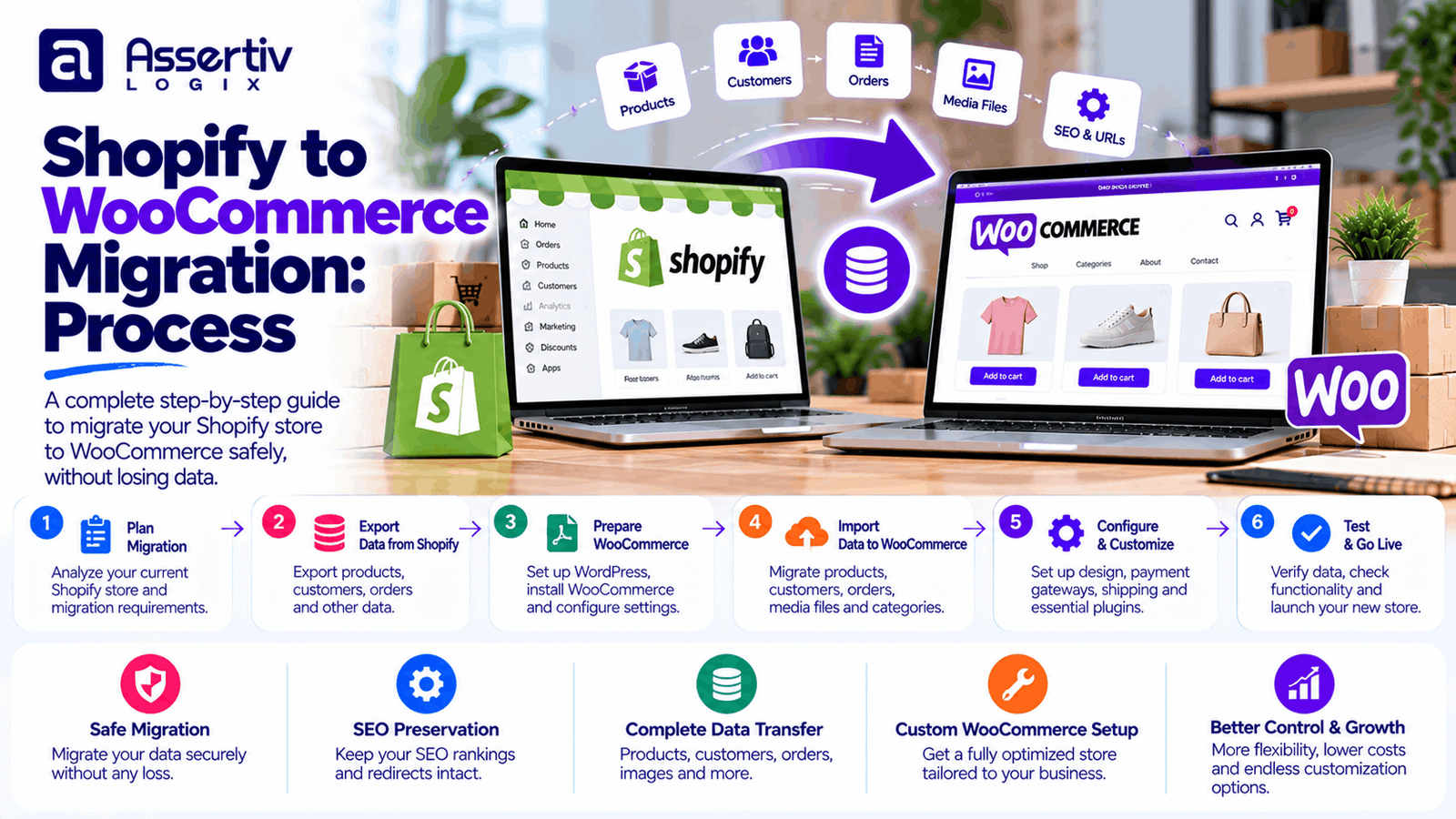
Shopify to WooCommerce migration gives eCommerce businesses more control over their website infrastructure, customization, hosting, and store functionality. Moving platforms can be a practical decision when your current store no longer fits your business needs, but the process involves more than copying products from one dashboard to another.
A successful migration needs careful planning for products, customers, order history, payment methods, shipping rules, store design, integrations, and search engine optimization. If these details are overlooked, a store may launch with broken links, missing product information, checkout problems, or unexpected changes in organic traffic.
This guide explains the Shopify to WooCommerce migration process from the initial audit through launch and post-migration monitoring. Whether you run a small online shop or a growing eCommerce business, the objective is to move your store with minimal disruption while building a platform that supports your future requirements.
Why Migrate from Shopify to WooCommerce?
Shopify and WooCommerce both support online selling, but they use different approaches. Shopify is a hosted commerce platform, while WooCommerce operates as an eCommerce plugin within WordPress. WooCommerce gives store owners greater control over their hosting environment, WordPress setup, and custom code, while also making them responsible for more of the technical maintenance.
1. Greater control over your store
WooCommerce lets you manage your store within WordPress and choose compatible hosting, themes, extensions, and custom development. This flexibility can be useful when your business needs specialized product pages, custom checkout behavior, or integrations that do not fit neatly into a standard platform setup.
2. Custom functionality and integrations
Businesses may need custom pricing rules, specialized product configurations, external API connections, membership features, wholesale workflows, or integration with internal business systems. WooCommerce can support many of these requirements through extensions and custom development.
However, flexibility does not automatically mean every feature is easier or cheaper. Custom functionality still requires planning, testing, and ongoing maintenance.
3. Greater choice of hosting
With WooCommerce, you can select a hosting provider according to your traffic, performance, budget, and technical requirements. You can also choose how caching, backups, staging environments, and server resources are managed.
The trade-off is that hosting quality and configuration become important responsibilities. A poorly maintained WooCommerce store can perform worse than a well-configured hosted store.
4. WordPress content management
If content marketing is central to your business, WordPress provides a flexible publishing environment for articles, landing pages, resources, and other content. Your store and content can operate within the same platform, helping your team manage product marketing and editorial work together.
5. More control over ongoing platform decisions
WooCommerce is open-source software, and you can choose from a broad ecosystem of themes, plugins, hosting providers, and developers. This can help businesses shape their technology stack around their own needs rather than relying entirely on one hosted platform.
Before migrating, compare the full cost of hosting, paid extensions, development, security, backups, and maintenance with your current Shopify expenses. A migration makes sense when the overall benefits justify the transition effort.
What Should You Migrate from Shopify to WooCommerce?
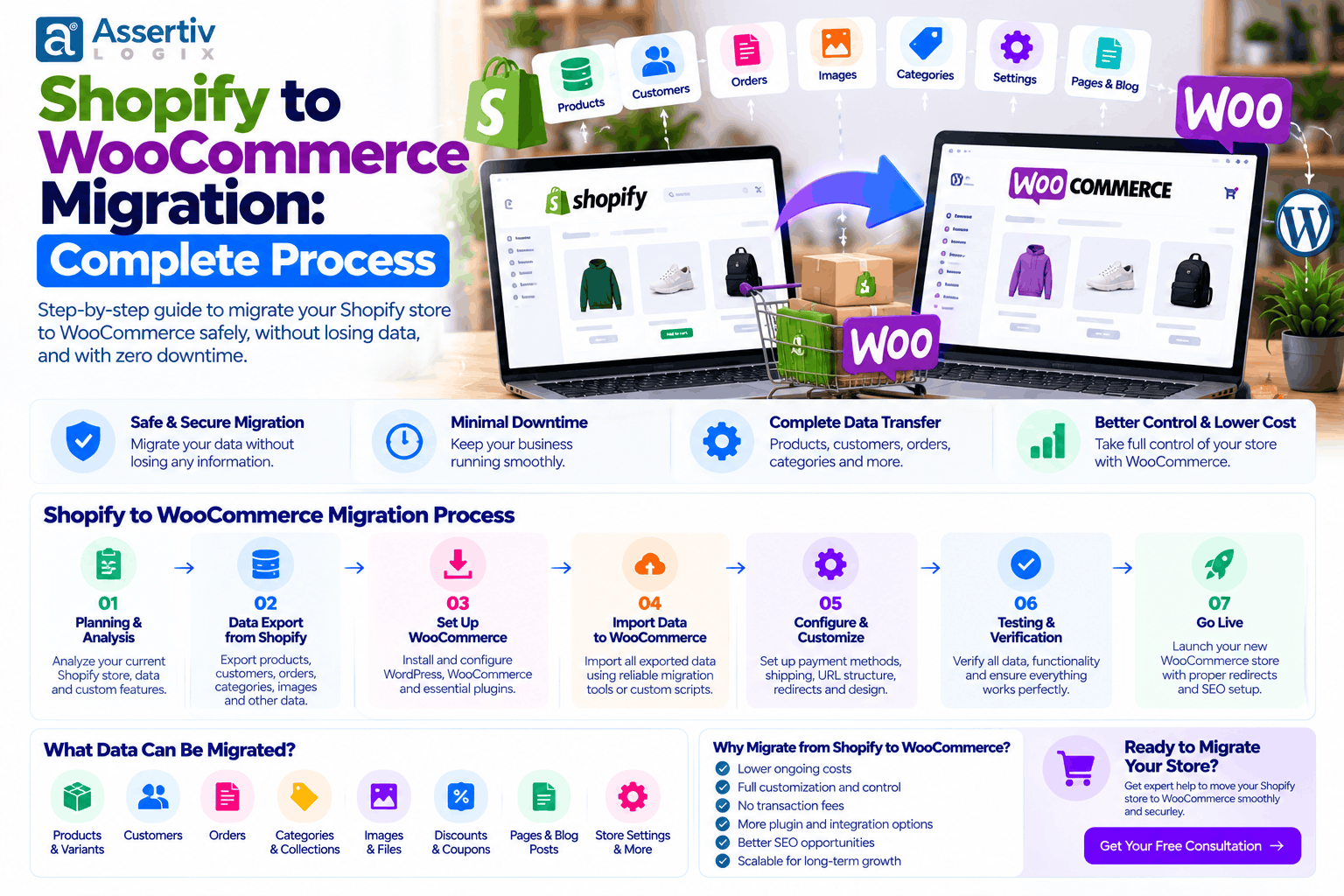
Before moving any data, create a complete inventory of the information and functionality your store currently uses. Not every Shopify feature has a direct WooCommerce equivalent, so each item needs a migration or replacement plan.
| Store component | Migration consideration |
|---|---|
| Products | Names, descriptions, SKUs, prices, images, variants, stock, and categories |
| Customers | Names, email addresses, billing details, shipping details, and available customer records |
| Orders | Order references, dates, line items, totals, discounts, shipping, taxes, and status history where supported |
| Collections and categories | Map Shopify collections to suitable WooCommerce product categories and tags |
| Pages and blog posts | Content, images, metadata, formatting, internal links, and publishing dates where relevant |
| SEO data | Page titles, meta descriptions, canonical URLs, indexation rules, and redirects |
| Discounts | Recreate applicable coupon rules and verify eligibility conditions |
| Shipping and taxes | Reconfigure shipping zones, rates, tax settings, and applicable business rules |
| Payments | Connect supported payment gateways and verify checkout, refunds, and settlement workflows |
| Integrations | Replace or reconnect CRM, email marketing, analytics, fulfillment, accounting, and support tools |
| Theme and design | Rebuild the storefront layout, responsive behavior, navigation, and custom features |
| Customer accounts | Plan account migration and password reset or reactivation procedures where necessary |
Migration tools differ in the data they support. Confirm whether each field, relationship, and historical record can be transferred before choosing a method. For complex stores, export samples and test them in a staging environment first.
Shopify to WooCommerce Migration: Step-by-Step Process
Step 1: Audit your Shopify store
Start by reviewing the current store before making technical changes. Document its size, functionality, design, traffic sources, and business-critical workflows.
- Count products, variants, categories, customers, and orders.
- List custom product fields, bundles, subscriptions, and special pricing rules.
- Identify the payment gateways, shipping services, and tax configurations in use.
- Record active apps and the business function each app supports.
- Export or document important page URLs and SEO metadata.
- Review analytics, conversion tracking, and key landing pages.
- Identify integrations that need to be replaced or reconnected.
Pay special attention to features provided by Shopify apps. Some may be replaced by WooCommerce extensions, while others may require a different service or custom development.
Step 2: Back up your data and prepare exports
Before starting the migration, export the available Shopify data and retain secure copies of important records. Shopify’s native export options can help with products, customers, and orders, but export formats and supported fields vary by data type.
Review the official Shopify Help Center for current export procedures. Keep the original exports unchanged and use working copies for cleaning and mapping.
Also preserve copies of relevant content, product images, policy pages, configuration details, and analytics settings. Store exports and customer data securely, restrict access, and retain them only as long as required for the migration and applicable obligations.
Step 3: Set up WordPress and WooCommerce
Prepare the destination environment before importing store data. Choose hosting that matches your expected traffic, catalog size, and performance requirements. Install WordPress and WooCommerce, configure SSL, and create a staging environment where the migration can be tested without affecting the live store.
Set up the basic store configuration, including:
- Store address, currency, and locale
- Product and permalink settings
- Shipping zones and delivery options
- Tax settings based on your business obligations
- Payment gateway configuration for testing
- Backup and security arrangements
- Transactional email delivery
For implementation guidance, consult the official WooCommerce documentation and WordPress documentation.
Step 4: Choose a migration method
The best migration method depends on the store’s size, complexity, budget, and data requirements.
Manual export and import: This approach can work for smaller catalogs and straightforward data structures. It requires careful field mapping, cleanup, and validation.
Migration plugin or service: A specialized tool may automate selected data transfers and reduce repetitive work. Check supported entities, field mapping, historical order handling, pricing, and compatibility before relying on it.
Custom migration: Custom scripts or API-based tools may be appropriate for large catalogs, specialized product structures, custom fields, complex order histories, or systems that need repeatable synchronization.
Do not assume that a product import automatically transfers every customer record, order detail, review, discount rule, or app-specific feature. Test the exact data set and document any exclusions.
Step 5: Migrate products and catalog data
Product migration is more than transferring names and prices. A complete catalog may include descriptions, images, SKUs, stock quantities, variants, product attributes, categories, tags, weights, dimensions, sale prices, and custom fields.
During the transfer:
- Match Shopify product fields to WooCommerce product fields.
- Map collections to appropriate WooCommerce categories and tags.
- Verify variant options, SKU uniqueness, and stock management.
- Check image imports, featured images, and gallery order.
- Confirm sale prices, tax settings, and shipping dimensions.
- Review product slugs and decide how old product URLs will redirect.
- Test variable, downloadable, subscription, or bundled products separately.
Run sample imports before moving the entire catalog. Compare a selection of simple products, products with multiple variants, and products with special configuration requirements. Once the mapping is correct, import the remaining catalog and validate the totals.
Step 6: Migrate customer and order data
Customer and order migration requires additional care because the information may be used for customer support, accounting, fulfillment, returns, and reporting.
Verify the handling of customer details, billing and shipping addresses, order line items, discounts, taxes, shipping charges, refunds, order dates, and status history. The exact fields available depend on the export or migration tool.
Customer passwords generally cannot be transferred as usable passwords through a normal export because secure password hashes and authentication systems differ. Plan a clear customer account activation or password reset process if existing customers need to log in to the new store.
Historical orders may also behave differently from newly placed WooCommerce orders. Test whether imported records are treated as historical data, whether stock is changed unexpectedly, and whether emails or other automations could be triggered during import.
Protect customer data throughout the process. Avoid importing unnecessary personal information and verify that the new store follows the privacy and retention obligations that apply to your business.
Step 7: Rebuild the store design and functionality
Shopify themes do not transfer directly into WooCommerce as ready-to-use WordPress themes. Recreate the storefront using a suitable WooCommerce-compatible theme, a page builder, or custom WordPress development.
Rebuild and test the following areas:
- Homepage and navigation
- Product listing and category pages
- Product detail pages and variant selectors
- Cart and checkout experience
- Customer account pages
- Search, filtering, and sorting
- Contact, shipping, return, and privacy pages
- Mobile layouts and responsive interactions
Use the migration as an opportunity to fix usability issues, but avoid making unnecessary design changes that complicate testing. Preserve recognizable branding and important customer journeys unless there is a clear reason to improve them.
Step 8: Configure payments, shipping, and taxes
Payment methods, shipping rates, and tax rules need to be configured and tested on the WooCommerce store. Do not assume that the settings from Shopify will automatically carry over.
Connect the appropriate payment gateway and verify successful payments, declined payments, refunds, order confirmation emails, and payment status updates. Use the gateway’s test mode where available before accepting live transactions.
Recreate shipping zones, delivery methods, free-shipping conditions, and special product restrictions. Validate tax settings against your business requirements and obtain professional advice when tax obligations are uncertain.
Also check how the store handles failed payments, cancelled orders, partial refunds, and notifications. These details can affect both customer experience and back-office operations.
Step 9: Migrate content and preserve SEO
Search engine optimization is one of the most important parts of a Shopify to WooCommerce migration. A change in platform can change URLs, page templates, internal links, metadata, and technical SEO settings. Without a migration plan, search engines and visitors may encounter broken pages or lose access to important content.
Before launch, document the existing URLs for important products, collections, pages, and blog posts. Map each old URL to the closest equivalent destination URL.
Key SEO tasks include:
- Preserve valuable page titles and meta descriptions where appropriate.
- Recreate relevant product and category content.
- Map old Shopify URLs to their new WooCommerce URLs.
- Implement permanent redirects, usually HTTP 301 redirects, where pages have moved permanently.
- Update internal links so they point directly to the new URLs.
- Review canonical tags, indexation settings, and robots directives.
- Generate and submit the new XML sitemap.
- Verify the new site in Google Search Console.
- Check structured data and product information on key pages.
For a redirect, send visitors and search engines to the most relevant replacement page rather than redirecting every old URL to the homepage. If no suitable replacement exists, choose the correct response based on the page and its purpose.
Use Google’s site move guidance when planning URL changes. You can also review the Google SEO Starter Guide and use Google Search Console to monitor indexing and search performance after launch.
Step 10: Reconnect marketing and analytics tools
List every service that depends on the current Shopify store and configure the corresponding integration for WooCommerce. This may include analytics, advertising pixels, email marketing, CRM, customer support, product feeds, affiliate tracking, and fulfillment systems.
Check that purchase events fire correctly and that revenue, currency, order identifiers, and conversion events are recorded as expected. Avoid installing multiple tools that send the same event, as duplicate tracking can distort campaign reports.
Review consent settings and make sure analytics or marketing tags behave according to your privacy requirements. Confirm that email subscriptions and communication preferences are preserved accurately.
Step 11: Test the complete customer journey
Do not launch immediately after the import finishes. Test the store as a customer, using desktop and mobile devices and a variety of realistic order scenarios.
- Browse categories and search for products.
- Open product pages and select available variants.
- Add products to the cart and update quantities.
- Complete checkout using supported payment methods.
- Verify shipping rates, taxes, discounts, and order totals.
- Check confirmation emails and customer account access.
- Test order cancellation, refunds, and inventory changes.
- Verify forms, contact links, analytics events, and marketing integrations.
- Check redirected URLs, broken links, and mobile usability.
- Review loading speed, accessibility basics, and security configuration.
Test important extensions together. A checkout plugin, shipping extension, payment gateway, and caching configuration may each work separately but still conflict when combined.
Step 12: Launch and monitor the new store
Choose a launch window that gives your team enough time to verify the new store and respond to issues. If the Shopify store continues receiving orders during migration, plan a final synchronization or controlled cutover to avoid losing recent customers or transactions.
Before switching traffic:
- Confirm the latest product, customer, and order data has been handled.
- Back up the final WooCommerce configuration and database.
- Verify SSL, domain configuration, redirects, and indexing settings.
- Complete live payment tests using an approved procedure.
- Check transactional email delivery and fulfillment workflows.
- Confirm that the old store and data exports remain available as needed.
After launch, monitor errors, orders, payment failures, customer feedback, page indexing, redirects, and organic traffic. Keep a list of issues and prioritize problems that affect checkout, payments, customer access, or high-value landing pages.
Shopify to WooCommerce Migration Checklist
- Audit the Shopify store and its apps.
- Export and securely back up required data.
- Set up WordPress, WooCommerce, hosting, SSL, and staging.
- Choose and test the migration method.
- Map and import products, variants, images, and inventory.
- Import customers and required order history.
- Plan password resets or customer account activation.
- Rebuild theme layouts and custom functionality.
- Configure payments, shipping, taxes, and transactional emails.
- Map old URLs and implement relevant redirects.
- Restore SEO metadata, internal links, and structured data.
- Reconnect analytics, advertising, CRM, and email marketing.
- Test checkout, refunds, stock, and mobile layouts.
- Prepare the final synchronization and launch plan.
- Monitor technical errors, search performance, and sales after launch.
Common Shopify to WooCommerce Migration Mistakes
Assuming all data transfers automatically
Different migration methods support different fields and records. Confirm exactly what is included and document anything that must be recreated manually.
Ignoring redirects and old URLs
Broken product or collection URLs can frustrate customers and weaken the continuity of your search presence. Prepare and test a redirect map before switching the domain to the new store.
Forgetting app functionality
Shopify apps may handle reviews, subscriptions, bundles, loyalty programs, or other business processes. Identify replacements and test them before retiring the original store.
Launching without testing checkout
A store can look complete while payments, tax calculations, shipping rules, or confirmation emails are still broken. Test the complete purchase process and its failure scenarios.
Failing to plan for ongoing orders
If customers continue ordering during the migration, the destination store can launch with stale order or stock information. Set a clear data freeze, final synchronization, or cutover procedure.
Neglecting maintenance after migration
WooCommerce requires ongoing attention to updates, backups, security, compatibility, and performance. Assign responsibility for these tasks before launch rather than treating migration as the end of the project.
How Long Does Shopify to WooCommerce Migration Take?
The timeline depends on catalog size, historical data, design complexity, integrations, custom functionality, and the quality of the existing data. A small store with standard products may be migrated much faster than a store with complex variants, subscriptions, custom checkout requirements, and extensive historical records.
| Migration type | Typical planning considerations |
|---|---|
| Small, straightforward store | Standard products, limited integrations, simple design, and basic redirects |
| Growing eCommerce store | More products and orders, custom page layouts, marketing integrations, and additional testing |
| Complex or enterprise store | Large catalogs, specialized workflows, extensive historical data, multiple integrations, and controlled cutover |
These categories are for planning, not guaranteed delivery estimates. Establish a timeline after auditing the store, confirming the migration scope, and testing the chosen method. Data cleanup and third-party integration work can have a significant impact on the schedule.
How Much Does Shopify to WooCommerce Migration Cost?
Migration cost depends on the amount of data, design requirements, functionality, integration work, and post-launch support. A basic data transfer is different from a full rebuild that includes custom design, historical order migration, advanced integrations, and detailed SEO preservation.
| Cost factor | What influences it |
|---|---|
| Data migration | Product volume, variants, customer records, order history, and data cleanup |
| Design and development | Theme selection, custom layouts, responsive design, and specialized features |
| Extensions and licenses | Required WooCommerce plugins and third-party services |
| Integrations | Payments, shipping, CRM, accounting, inventory, and marketing systems |
| SEO migration | URL mapping, redirects, metadata, technical checks, and monitoring |
| Testing and launch | Staging, checkout validation, cutover planning, and issue resolution |
| Ongoing maintenance | Updates, backups, security, performance, and support |
Ask for a project estimate that defines the included data, supported functionality, SEO deliverables, testing scope, launch responsibilities, and post-launch support. This makes proposals easier to compare and reduces the risk of unexpected work.
Why Work With a WooCommerce Migration Specialist?
A migration specialist can coordinate the technical and business details that are easy to overlook when moving platforms. This is especially valuable when the store has a large catalog, custom functionality, complex order history, or substantial organic search traffic.
A professional migration process should include:
- A documented audit and migration scope
- Secure data exports and a controlled staging environment
- Field mapping and validation of imported records
- Theme redevelopment and integration configuration
- SEO URL mapping and redirect testing
- Payment, shipping, inventory, and checkout tests
- A clear cutover plan and post-launch monitoring
Assertivlogix provides WordPress and WooCommerce development support for businesses planning store migrations, custom integrations, performance improvements, and eCommerce functionality. The right approach depends on your current Shopify setup, data requirements, and business goals.
Explore our WooCommerce development services or review our guide to hiring a WordPress developer for a WooCommerce store.
Get help planning your migration, transferring store data, rebuilding functionality, and protecting important SEO URLs. Discuss your requirements with Assertivlogix before you begin.
Frequently Asked Questions
Can I migrate my Shopify store to WooCommerce?
Yes. You can migrate supported products, customer data, orders, content, and other store information to WooCommerce using manual exports, migration tools, or custom development. The exact data that can be transferred depends on the source data and migration method.
Will I lose my SEO rankings when migrating from Shopify to WooCommerce?
Rankings are not guaranteed to remain unchanged during a platform migration. You can reduce avoidable disruption by preserving useful content, mapping old URLs to relevant new URLs, implementing redirects, updating internal links, and monitoring the new site in Google Search Console.
Can Shopify products and variants be migrated to WooCommerce?
Yes. Products and supported variant data can be migrated, but you should verify SKUs, attributes, images, prices, stock quantities, and product types. Products with complex options or custom fields may require additional mapping or development.
Can I migrate Shopify customers and order history?
Customer records and supported order data can often be migrated. The fields and historical details available depend on the export or migration tool. Test billing details, line items, totals, statuses, refunds, and customer account access before launch.
Will my customers keep their Shopify passwords?
Usually, customers should not be expected to use their existing Shopify passwords on WooCommerce. Plan an account activation or password reset process and communicate the steps clearly to customers.
How do I redirect Shopify URLs to WooCommerce?
Create a mapping from each important old URL to the most relevant new URL and implement permanent redirects where pages have moved. Test the redirects and avoid sending every old page to the homepage when a more relevant destination exists.
Will my Shopify theme work on WooCommerce?
Shopify themes do not directly become WooCommerce themes. You will generally need to choose a compatible WordPress theme or rebuild the design using a page builder or custom development.
How long does Shopify to WooCommerce migration take?
The timeline depends on catalog size, order history, custom functionality, integrations, design work, and testing requirements. A reliable schedule should be set after auditing the store and confirming the migration scope.
Should I keep my Shopify store active during migration?
During preparation and testing, keeping the current store available can help avoid disrupting sales. Before launch, plan how to handle new orders, inventory changes, and customer updates so the final WooCommerce store receives the required latest data. The exact cutover approach depends on your store and migration method.
Conclusion
Shopify to WooCommerce migration can give your business greater control over its eCommerce setup, customization, hosting, and WordPress content. A smooth transition requires more than importing products: customer and order data, checkout, integrations, SEO URLs, and post-launch maintenance all need attention.
Start with a detailed audit, choose a migration method that fits your store, validate the imported data, and test the complete customer journey in staging. Before launch, finalize redirects, analytics, payments, and the plan for handling orders placed during the transition.
With the right planning and technical support, your new WooCommerce store can be prepared to serve customers reliably while supporting your longer-term business goals. Contact Assertivlogix to discuss your Shopify to WooCommerce migration requirements.