Website speed is an important part of delivering a good user experience. Visitors expect pages to load quickly, navigation to respond smoothly, and content to appear without unnecessary delays. When a WordPress website is slow, users may leave before exploring its products, services, or content.
WordPress powers websites ranging from small business blogs to large ecommerce platforms. Its flexibility makes it suitable for many projects, but performance depends on how the website is developed, hosted, configured, and maintained.
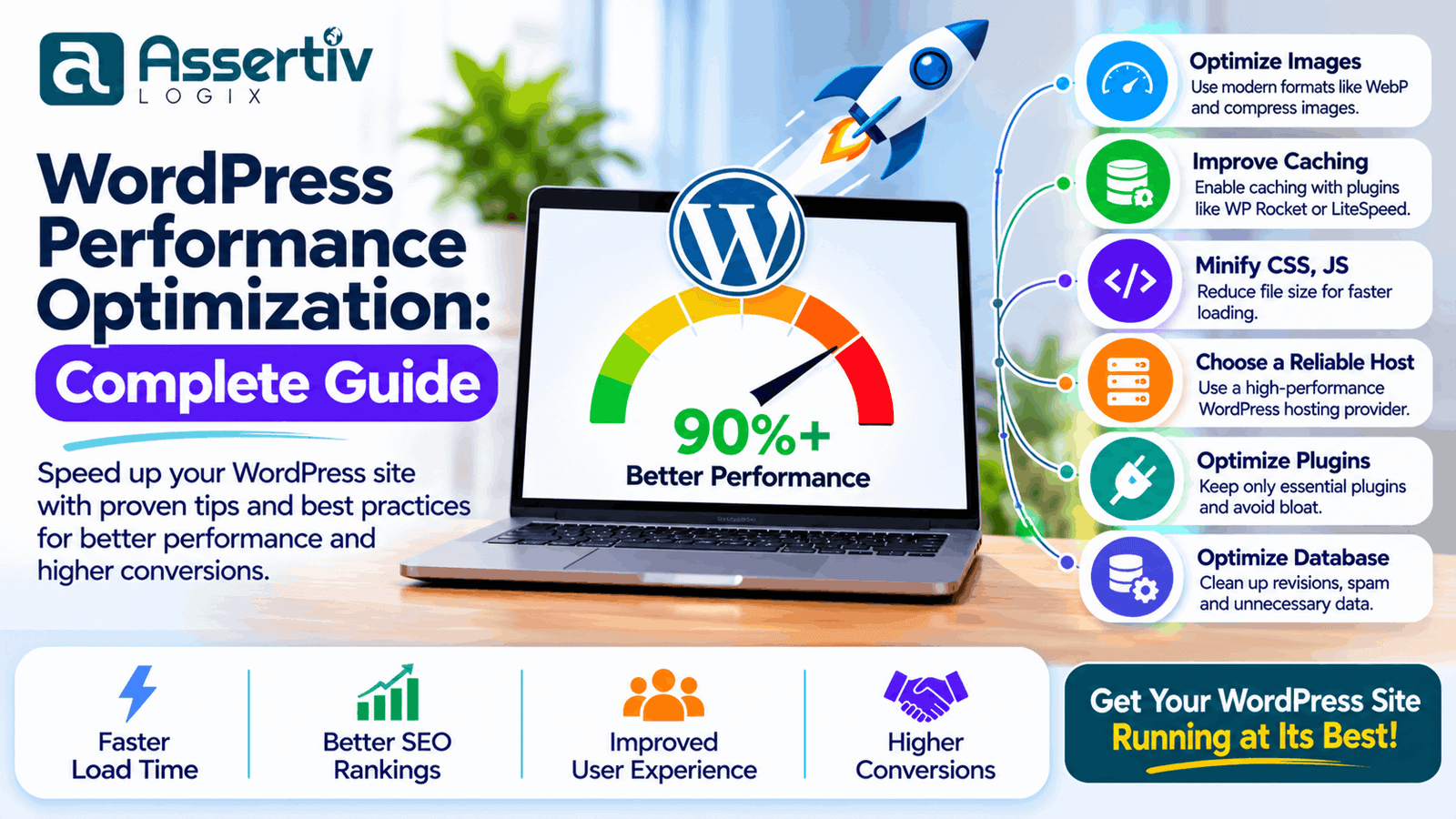
WordPress performance optimization is not simply about installing a caching plugin. It involves improving hosting, database queries, images, themes, plugins, scripts, caching, and front-end delivery.
In this guide, we explain how to identify performance problems and improve WordPress website speed using practical optimization techniques. Whether you manage a business website, blog, or WooCommerce store, these recommendations can help create a faster and more reliable website.
What Is WordPress Performance Optimization?
WordPress performance optimization is the process of improving how quickly and efficiently a WordPress website loads and responds to user interactions.
It involves reducing unnecessary processing, optimizing website assets, improving server response, and delivering content efficiently across devices and network conditions.
Common optimization activities include:
- Choosing suitable WordPress hosting
- Configuring page and browser caching
- Optimizing images and other media
- Reducing unnecessary CSS and JavaScript
- Using lightweight themes and plugins
- Improving database performance
- Implementing a content delivery network
- Optimizing fonts and third-party scripts
- Monitoring Core Web Vitals
- Regularly testing and maintaining website performance
Why Is WordPress Website Performance Important?
Website performance affects how visitors interact with your business online. A fast website makes it easier for users to browse pages, read content, complete forms, and purchase products.
1. Better user experience
Visitors expect websites to respond quickly. Faster page loading and smoother interactions reduce unnecessary waiting and make browsing more comfortable, particularly on mobile devices.
2. Improved conversion opportunities
When users can navigate product pages, service information, and checkout flows without delays, they have a better opportunity to complete the action they came to perform.
3. Support for SEO performance
Google uses Core Web Vitals as part of its page experience signals. Good performance can contribute to a better user experience, although speed alone does not guarantee higher rankings. Content relevance, quality, technical SEO, and many other factors matter.
4. Better mobile experience
Many visitors access websites through mobile devices and variable network connections. Optimizing images, scripts, layouts, and server response helps improve the experience across different devices.
5. More efficient website resources
Reducing unnecessary requests, oversized assets, and inefficient database operations can lower resource consumption and help a website handle traffic more efficiently.
How to Measure WordPress Website Performance
Before making changes, measure your website’s current performance. Testing helps identify the largest bottlenecks and gives you a baseline for comparing results after optimization.
Google PageSpeed Insights
Google PageSpeed Insights evaluates page performance using both Lighthouse lab data and available real-user field data. It provides suggestions related to loading, responsiveness, and visual stability.
Use it to inspect important pages such as the homepage, service pages, blog posts, product pages, and checkout pages.
Google Lighthouse
Lighthouse audits performance and other website quality areas. It can help developers identify render-blocking resources, oversized images, inefficient scripts, and other opportunities.
WebPageTest
WebPageTest helps analyze loading behavior through detailed waterfall charts, repeat views, and configurable test conditions.
Google Search Console
Google Search Console includes the Core Web Vitals report, which helps website owners identify groups of URLs with real-user performance issues.
Understanding Core Web Vitals
Core Web Vitals are Google’s user-focused metrics for evaluating important aspects of page experience. The three current Core Web Vitals are Largest Contentful Paint, Interaction to Next Paint, and Cumulative Layout Shift.
| Metric | What It Measures | Good Target |
|---|---|---|
| Largest Contentful Paint (LCP) | Loading performance of the largest visible content element | 2.5 seconds or less |
| Interaction to Next Paint (INP) | Responsiveness to user interactions | 200 milliseconds or less |
| Cumulative Layout Shift (CLS) | Unexpected visual layout movement | 0.1 or less |
These targets are evaluated at the 75th percentile of page visits, separated by mobile and desktop where applicable.
How to improve LCP
- Optimize the main hero image and avoid lazy-loading the primary visible image.
- Improve server response time.
- Reduce render-blocking CSS and JavaScript.
- Preload critical resources when appropriate.
- Use efficient image formats and responsive image sizes.
How to improve INP
- Reduce long-running JavaScript tasks.
- Break up expensive main-thread work.
- Remove unnecessary scripts and event listeners.
- Optimize complex menus, filters, and interactive components.
- Delay nonessential third-party scripts where practical.
How to improve CLS
- Set width and height attributes for images and video elements.
- Reserve space for advertisements and embedded content.
- Avoid inserting content above existing content unexpectedly.
- Use stable font-loading strategies.
- Ensure dynamic components have predictable dimensions.
1. Choose the Right WordPress Hosting
Hosting is one of the foundations of WordPress performance. A poorly configured server can slow down even a well-developed website.
When choosing hosting, consider:
- Available CPU and memory resources
- Server response and storage performance
- PHP version and configuration
- Database performance
- Server-side caching support
- Data center location and CDN compatibility
- Traffic capacity and scalability
- Backup and security features
Shared hosting may be sufficient for a small website with limited traffic. Growing business websites and WooCommerce stores may benefit from managed WordPress hosting, VPS hosting, or a suitably configured cloud environment.
Choose hosting based on actual resource requirements rather than relying only on advertised speed claims.
2. Use a Lightweight WordPress Theme
Your WordPress theme affects page structure, CSS, JavaScript, and the amount of code delivered to visitors.
Some themes include many features, animations, scripts, and layout components that a website may never use. These unnecessary resources can increase page weight and complicate optimization.
For better performance:
- Choose a theme with clean and maintainable code.
- Remove unused templates and features where possible.
- Avoid loading assets on pages that do not need them.
- Use reusable components instead of duplicating heavy layouts.
- Keep the design responsive and accessible.
- Review theme updates and compatibility regularly.
A custom WordPress theme can provide more control over the resources loaded on each page. However, custom development still needs careful implementation and testing to achieve good performance.
3. Optimize WordPress Images
Images are often among the largest assets on a website. Uploading oversized images can increase page weight and delay the display of important content.
Image optimization should preserve visual quality while reducing unnecessary file size.
Recommended image optimization techniques
- Resize images to dimensions appropriate for their display area.
- Use WebP or AVIF when supported by your image delivery workflow.
- Compress images before uploading them.
- Use responsive image sizes instead of delivering one large image everywhere.
- Set image width and height attributes to reduce layout shifts.
- Lazy-load below-the-fold images.
- Avoid lazy-loading the main above-the-fold LCP image.
- Use descriptive filenames and meaningful alt text.
For example, a small thumbnail does not need the same dimensions as a full-width hero image. Delivering appropriately sized images can reduce data transfer and improve loading behavior.
4. Implement Effective Caching
Caching stores reusable versions of website content so that the server does not need to perform the same work for every visitor request.
WordPress caching can reduce processing time and improve response speed, especially on pages with repeated traffic.
Types of caching
Page caching: Stores generated HTML pages so they can be served without running the full WordPress page-generation process for every request.
Browser caching: Allows browsers to reuse eligible static assets such as images, CSS, and JavaScript instead of downloading them again on every visit.
Object caching: Stores frequently used database query results and other objects to reduce repeated database work. Persistent object caching can be useful for larger websites.
Opcode caching: Helps PHP reuse compiled bytecode rather than repeatedly compiling PHP scripts.
Use a caching configuration that matches your hosting environment. Avoid running overlapping caching systems without understanding how they interact.
5. Optimize CSS and JavaScript
CSS and JavaScript control how your website looks and behaves. Excessive or inefficient assets can delay rendering and user interactions.
CSS optimization
- Remove unused CSS where it is safe to do so.
- Minify CSS files.
- Load critical styling efficiently.
- Avoid loading large stylesheets on every page when they are only needed in specific areas.
- Reduce unnecessary dependencies between theme and plugin stylesheets.
JavaScript optimization
- Remove unused scripts and libraries.
- Defer or delay noncritical JavaScript where appropriate.
- Use asynchronous loading for suitable independent scripts.
- Reduce expensive JavaScript execution.
- Load scripts only on pages where they are needed.
- Test menus, forms, sliders, filters, and checkout interactions after changes.
Minification alone does not guarantee better performance. Script execution, dependency order, and browser main-thread activity also matter.
6. Reduce Unnecessary WordPress Plugins
Plugins extend WordPress functionality, but poorly coded or unnecessary plugins can add database queries, scripts, stylesheets, background tasks, and external requests.
Review your installed plugins regularly.
- Remove plugins that are no longer required.
- Replace overlapping plugins with a suitable solution.
- Check plugin update history and compatibility.
- Review front-end assets loaded by each plugin.
- Measure performance before and after significant plugin changes.
- Avoid installing multiple plugins that perform the same optimization task.
The number of plugins alone does not determine website speed. A well-developed plugin can have little impact, while one inefficient plugin can create a significant bottleneck.
7. Optimize the WordPress Database
WordPress stores content, settings, users, and other information in its database. Over time, unnecessary data and inefficient queries can affect database performance.
Database optimization may include:
- Removing expired transient data where appropriate.
- Reviewing old post revisions and auto-drafts.
- Cleaning up unused plugin tables only after confirming they are not needed.
- Reviewing oversized autoloaded options.
- Identifying slow or repeated database queries.
- Adding suitable indexes when justified by query analysis.
- Optimizing database configuration for the hosting environment.
Always take a verified backup before database cleanup. Avoid deleting database records simply because a cleanup tool labels them unnecessary.
8. Use a Content Delivery Network (CDN)
A content delivery network distributes eligible website assets through a network of servers in different geographic locations. Visitors can receive cached content from a location closer to them, depending on the CDN’s coverage and configuration.
A CDN can help deliver:
- Images and other media
- CSS and JavaScript files
- Fonts and other static resources
- Eligible cached pages
CDNs can reduce latency and improve asset delivery, particularly for websites serving visitors across multiple countries. They do not automatically fix slow database queries or inefficient WordPress code.
9. Optimize WordPress Fonts
Fonts can affect both page loading and visual stability. Loading multiple font families, weights, and external font files can add unnecessary requests.
Improve font performance by:
- Using only the font families and weights required by the design.
- Considering modern font formats such as WOFF2.
- Hosting fonts locally when appropriate and permitted by their licenses.
- Preloading only critical fonts that are needed immediately.
- Using suitable font-display behavior.
- Providing fallback fonts with compatible dimensions where possible.
10. Reduce Third-Party Scripts
Analytics tools, advertising tags, chat widgets, embedded videos, heatmaps, and marketing scripts can affect website loading and responsiveness.
Review each third-party script and ask whether it is necessary on every page.
- Remove unused tracking and marketing scripts.
- Load nonessential scripts only where needed.
- Delay suitable scripts until after the main content is available.
- Use lightweight embed alternatives where possible.
- Monitor the impact of chat widgets and external forms.
- Review consent and privacy requirements before changing tracking behavior.
11. Optimize WooCommerce Performance
WooCommerce websites often require additional performance planning because they handle product catalogues, cart sessions, checkout requests, customer accounts, and transactional data.
Recommended WooCommerce optimization practices include:
- Use hosting suited to the store’s traffic and order volume.
- Optimize product images and gallery assets.
- Review product filters and search queries.
- Reduce unnecessary checkout fields and scripts.
- Keep WooCommerce, extensions, and themes updated.
- Use appropriate caching exclusions for cart, checkout, and account pages.
- Review database and order-query performance.
- Test payment gateways and checkout workflows after optimization.
- Monitor background tasks and scheduled actions.
Do not cache personalized or transactional pages as if they were static public content. Incorrect caching can expose stale cart information or interfere with checkout behavior.
Learn more about WooCommerce Development Services for custom store improvements.
12. Use Efficient WordPress Development Practices
Performance should be considered during development, not only after a website becomes slow.
Good development practices include:
- Use efficient PHP and avoid unnecessary processing.
- Enqueue scripts and styles correctly.
- Load assets only where required.
- Use WordPress APIs and hooks appropriately.
- Prevent repeated and inefficient database queries.
- Use pagination for large content lists.
- Optimize custom queries and templates.
- Follow secure coding and escaping practices.
- Test performance on realistic devices and network conditions.
Custom themes and plugins should be reviewed for both code quality and runtime impact. A visually polished website can still perform poorly if its underlying implementation is inefficient.
Common WordPress Performance Mistakes to Avoid
Some optimization approaches can create new problems when applied without testing. Avoid these common mistakes:
- Installing too many optimization plugins: Overlapping features can conflict and make troubleshooting difficult.
- Combining every CSS and JavaScript file: Combining files is not always beneficial with modern HTTP protocols and can introduce compatibility problems.
- Lazy-loading every image: Lazy-loading the primary visible image can delay LCP.
- Using aggressive caching everywhere: Dynamic and personalized pages require careful cache rules.
- Ignoring mobile performance: Desktop scores do not represent every visitor’s experience.
- Deleting database data without a backup: Some records may be required by plugins or business workflows.
- Optimizing only the homepage: Product, service, blog, and checkout pages may have different bottlenecks.
- Chasing a perfect score: Focus on real user experience and meaningful improvements rather than a single audit number.
WordPress Performance Optimization Checklist
Use this checklist when auditing or improving a WordPress website.
- Measure important pages before making changes.
- Review hosting resources and server response.
- Use a lightweight theme and efficient templates.
- Optimize image dimensions and formats.
- Configure page, browser, and object caching where appropriate.
- Reduce unnecessary CSS and JavaScript.
- Review plugins and third-party scripts.
- Optimize database queries and autoloaded options.
- Configure a CDN when it benefits your audience.
- Improve font loading and layout stability.
- Test Core Web Vitals on mobile and desktop.
- Check forms, navigation, search, and ecommerce workflows.
- Monitor performance after deployment.
When Should You Hire a WordPress Performance Optimization Expert?
Basic improvements such as resizing images and removing unused plugins can often be handled by website owners. However, deeper performance issues may require a developer with experience in WordPress architecture, PHP, databases, hosting, and front-end optimization.
Consider professional help when:
- Your website remains slow after basic optimization.
- Core Web Vitals show persistent problems.
- Your website has complex custom themes or plugins.
- Database queries or server response times are high.
- Your WooCommerce store has slow product or checkout pages.
- Optimization changes cause layout or functionality issues.
- You need a performance audit and a long-term improvement plan.
A professional optimization process should begin with measurement and diagnosis. It should then prioritize issues by their impact, implement changes carefully, and verify the results through repeat testing.
WordPress Performance Optimization Services by Assertivlogix
At Assertivlogix, we help businesses improve WordPress website performance through technical audits, code optimization, theme improvements, plugin reviews, database tuning, image optimization, and WooCommerce performance work.
Our approach focuses on identifying the actual causes of slow performance rather than applying generic optimization settings to every website.
Our WordPress development and optimization services include:
- WordPress speed and performance audits
- Core Web Vitals improvement
- Custom theme and plugin optimization
- PHP and database performance improvements
- Image and asset optimization
- Caching and CDN configuration
- WooCommerce performance optimization
- Ongoing WordPress maintenance and support
Let our team identify performance bottlenecks and recommend practical improvements for a faster, more reliable website.
Frequently Asked Questions
1. How can I improve WordPress website speed?
Start by measuring important pages, then review hosting, caching, images, themes, plugins, CSS, JavaScript, fonts, and database performance. Make changes based on measured bottlenecks and test the website again after each major improvement.
2. What is the best plugin for WordPress performance optimization?
There is no single best plugin for every website. The right solution depends on your hosting environment, caching support, theme, plugins, and performance issues. Choose compatible tools and avoid overlapping optimization features.
3. What is a good WordPress website loading time?
There is no single loading-time number that guarantees a good experience. Monitor Core Web Vitals, especially LCP, INP, and CLS, alongside real user experience and the performance of important page interactions.
4. Does website speed affect WordPress SEO?
Performance can contribute to page experience, and Core Web Vitals are used by Google as ranking signals. However, good scores do not guarantee rankings. Content quality, relevance, technical SEO, links, and other factors also influence search visibility.
5. Does having too many WordPress plugins slow down a website?
Not necessarily. Plugin count alone is not a reliable measure of performance. The impact depends on how each plugin is developed and what resources it loads. Review unnecessary plugins and measure the impact of resource-intensive extensions.
6. How often should I optimize my WordPress website?
Monitor performance regularly and review it after major theme, plugin, hosting, content, or design changes. A periodic performance audit can help identify new issues as the website grows.
7. Can a custom WordPress theme improve website performance?
A custom theme can improve performance when it is developed to load only the resources and functionality the website needs. However, custom development does not guarantee speed; code quality, hosting, database operations, and asset delivery still matter.
8. How do I check WordPress Core Web Vitals?
Use Google PageSpeed Insights for individual page testing and Google Search Console’s Core Web Vitals report to review real-user performance data for groups of URLs. You can also use Lighthouse and WebPageTest for further diagnostics.