
WordPress powers over 40% of websites worldwide, making it the most popular content management system on the internet. While its popularity brings flexibility and a vast ecosystem of themes and plugins, it also makes WordPress a frequent target for hackers, malware, brute-force attacks, and other cyber threats.
A compromised website can lead to data loss, SEO penalties, downtime, financial losses, and damage to your brand’s reputation. Fortunately, most security incidents can be prevented by following a structured security checklist.
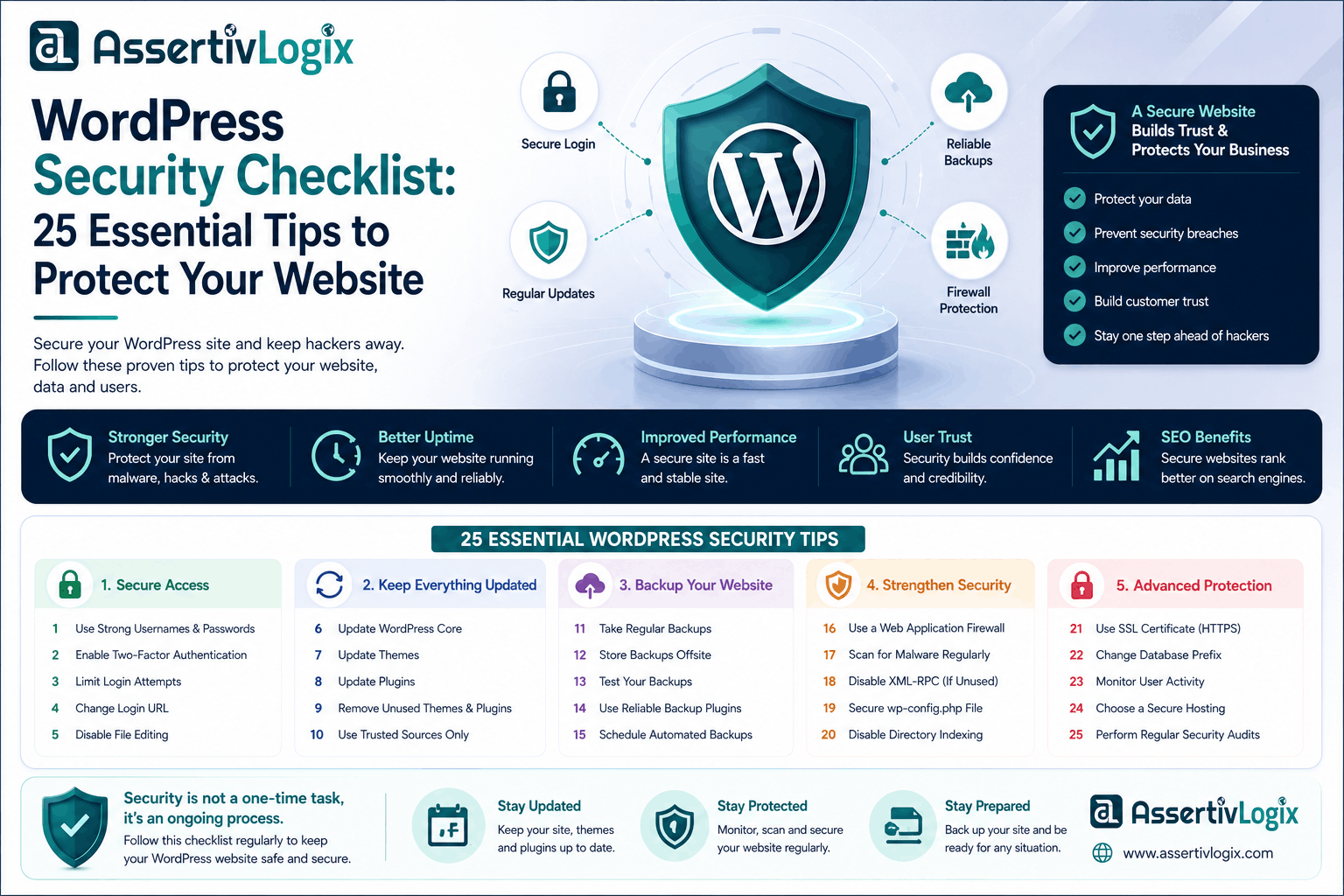
This guide covers 25 essential security practices that every WordPress website owner should implement to protect their website, customers, and business.
Why WordPress Security Matters
Website security isn’t just about preventing hacks. It also protects your customer data, improves trust, supports SEO, and ensures your website remains available.
Benefits of a secure WordPress website include:
- Protection from malware and ransomware
- Better customer trust
- Reduced downtime
- Improved SEO rankings
- Protection against data breaches
- Compliance with privacy regulations
WordPress Security Checklist
1. Keep WordPress Updated
Always use the latest version of WordPress to receive security patches and bug fixes.
2. Update Themes and Plugins
Outdated plugins and themes are among the most common causes of WordPress vulnerabilities.
3. Remove Unused Plugins and Themes
Delete anything you’re not actively using to reduce your website’s attack surface.
4. Use Strong Passwords
Create long, unique passwords for WordPress administrators, hosting accounts, databases, and FTP access.
5. Enable Two-Factor Authentication (2FA)
Add an extra layer of protection by requiring a verification code in addition to a password.
6. Limit Login Attempts
Restrict repeated login attempts to reduce brute-force attacks.
7. Change the Default Admin Username
Avoid using “admin” as your administrator username.
8. Install an SSL Certificate
HTTPS encrypts data transmitted between your website and visitors.
9. Use a Web Application Firewall (WAF)
A firewall blocks malicious traffic before it reaches your website.
10. Perform Regular Backups
Keep automated backups stored securely offsite so you can restore your website if needed.
11. Secure Your Hosting Environment
Choose a reputable hosting provider with built-in security features, malware scanning, and server monitoring.
12. Scan for Malware Regularly
Use security tools to detect and remove malicious code before it causes damage.
13. Disable File Editing
Prevent administrators from editing plugin and theme files directly from the WordPress dashboard.
14. Protect the wp-config.php File
This file contains sensitive configuration details and should be protected with proper server permissions.
15. Disable XML-RPC if Not Needed
If your website doesn’t rely on XML-RPC, disabling it can reduce certain attack vectors.
16. Set Correct File Permissions
Use secure file and directory permissions to prevent unauthorized access.
17. Secure the Database
Use strong database credentials and consider changing the default table prefix during installation.
18. Monitor User Accounts
Regularly review user roles and remove inactive accounts.
19. Use Trusted Themes and Plugins
Download software only from reputable developers and trusted marketplaces.
20. Protect the Login Page
Consider changing the default login URL or using CAPTCHA to reduce automated login attempts.
21. Disable Directory Browsing
Prevent visitors from viewing the contents of your server directories.
22. Monitor Activity Logs
Track login attempts, file changes, and administrator actions to identify suspicious behavior.
23. Keep PHP Updated
Use the latest supported PHP version to benefit from improved performance and security updates.
24. Implement Security Headers
Configure HTTP security headers such as Content Security Policy (CSP) and X-Frame-Options to improve browser-side protection.
25. Perform Regular Security Audits
Review your website’s security configuration, installed software, and server settings periodically.
Common WordPress Security Mistakes
- Using weak passwords
- Ignoring software updates
- Installing plugins from untrusted sources
- Not using HTTPS
- Skipping backups
- Giving unnecessary administrator access
- Using outdated PHP versions
Security Tools Worth Considering
- Security plugins
- Cloud-based firewalls
- Malware scanners
- Backup solutions
- Uptime monitoring tools
- Activity logging plugins
Best Practices for Long-Term Security
- Review your website monthly.
- Update software promptly.
- Monitor traffic and login activity.
- Educate team members about phishing and password security.
- Test your backup restoration process.
- Limit administrator accounts to only those who need them.
Frequently Asked Questions
Is WordPress secure?
Yes. WordPress is secure when properly maintained, updated, and configured using recommended security practices.
How often should I back up my website?
For active websites, daily backups are recommended. High-traffic ecommerce websites may require more frequent backups.
Can free security plugins protect my website?
Many free security plugins provide valuable protection, but premium solutions often include advanced features such as real-time firewalls, malware removal, and priority support.
Conclusion
WordPress security is an ongoing process rather than a one-time task. By following this checklist, you can significantly reduce the risk of attacks and keep your website fast, secure, and reliable.
Regular updates, strong authentication, reliable backups, trusted hosting, and proactive monitoring form the foundation of a secure WordPress website. Whether you run a personal blog, business website, or WooCommerce store, investing in security today can save you from costly problems in the future.
Review this checklist regularly, stay informed about new security threats, and make website security a core part of your WordPress maintenance strategy.