
Introduction
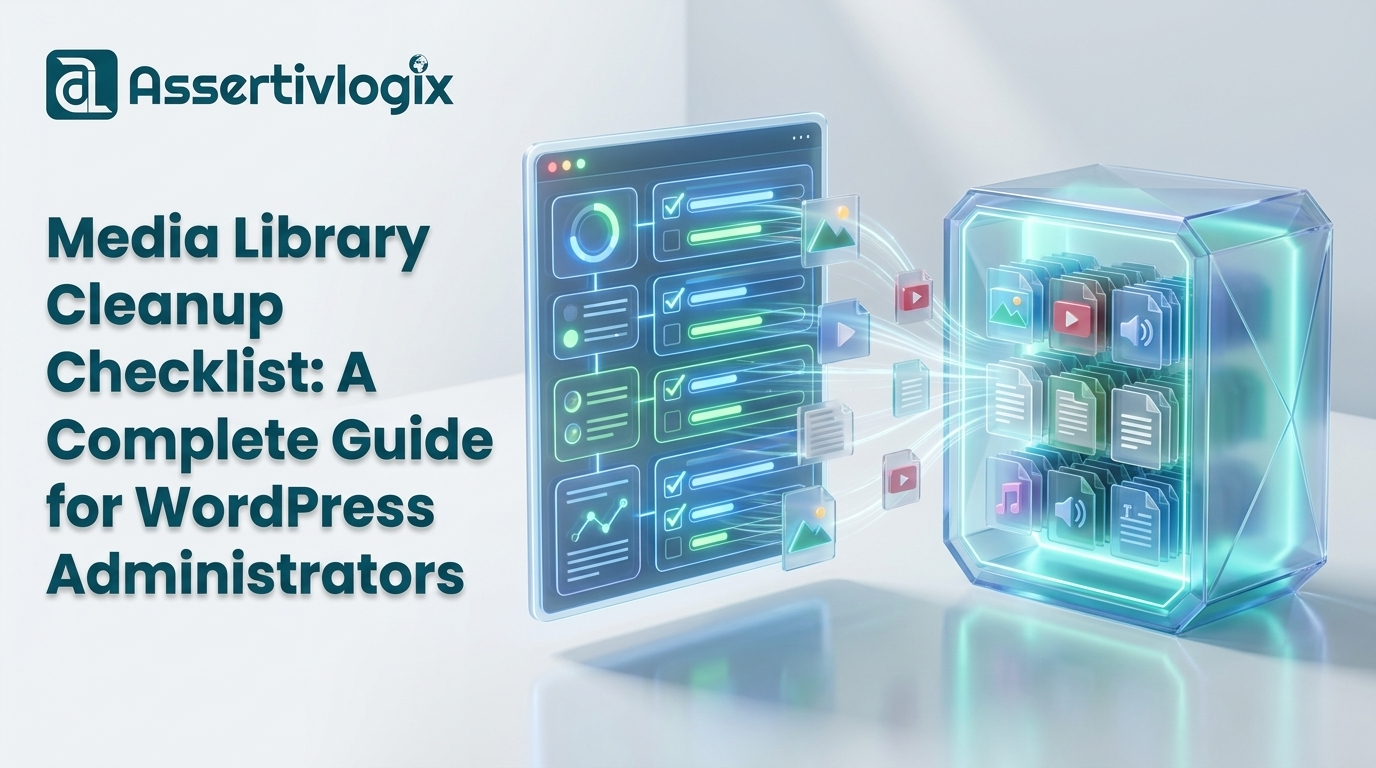
Every WordPress website relies heavily on its media library. Images, PDFs, videos, downloadable resources, product photos, banners, and marketing assets are uploaded regularly to support content creation and website growth. While these files are essential for day-to-day operations, they can quickly become a burden when left unmanaged.
Over time, WordPress media libraries accumulate thousands of files. Many of these assets are no longer used anywhere on the website. Others are duplicate uploads that consume storage without providing any value. Website redesigns, WooCommerce product updates, content revisions, and marketing campaigns all contribute to media library bloat.
For WordPress administrators, maintaining a clean media library is not simply about organization. A well-maintained media library improves website management, reduces hosting costs, simplifies backups, and makes future migrations much easier.
This guide provides a complete media library cleanup checklist designed specifically for WordPress administrators. It also explains how tools like Assertivlogix Duplicate and Unused Media Cleaner can help identify duplicate and unused media files more efficiently.
Why Media Library Cleanup Matters
Many website owners ignore media maintenance because the negative effects are not immediately visible. Unlike broken pages or security issues, media library clutter develops gradually.
However, the consequences become significant over time:
- Increased hosting storage usage
- Larger backup archives
- Slower migration processes
- Difficulty locating media assets
- Reduced team productivity
- Higher cloud storage expenses
- More complex website maintenance
Regular cleanup helps prevent these problems before they become expensive and time-consuming.
The Complete WordPress Media Library Cleanup Checklist
Use the following checklist as part of your regular WordPress maintenance routine.
Step 1: Create a Full Website Backup
Before making any changes to your media library, create a complete website backup.
Your backup should include:
- WordPress database
- Themes
- Plugins
- Media uploads folder
- Custom code files
Even when using advanced media cleanup tools, having a backup ensures you can restore files if necessary.
This should always be the first item on your cleanup checklist.
Step 2: Review Current Storage Usage
Understanding how much storage your website currently uses helps measure the impact of cleanup efforts.
Review:
- Total hosting storage usage
- Uploads directory size
- Backup archive size
- Monthly storage growth
Many administrators are surprised to discover that media files account for more than 80% of total website storage.
Step 3: Audit the Media Library
Next, perform a comprehensive media audit.
Look for:
- Duplicate images
- Unused media files
- Old PDFs
- Expired promotional assets
- Unused videos
- Outdated downloadable documents
For larger websites, manually reviewing thousands of files is impractical.
This is why many administrators use Assertivlogix Duplicate and Unused Media Cleaner to help identify duplicate and unused media efficiently.
Step 4: Identify Duplicate Media Files
Duplicate files are one of the most common causes of media library bloat.
Examples include:
- Multiple logo versions
- Repeated product images
- Duplicate marketing banners
- Repeated downloads
- Reuploaded PDFs
These duplicates consume storage while providing little or no value.
Removing duplicate files should be a priority.
Step 5: Identify Unused Media Files
Unused media files are assets that no longer appear anywhere on the website.
Common examples include:
- Deleted blog images
- Removed product photos
- Expired campaign graphics
- Unused landing page assets
- Archived marketing materials
Unused files can remain on servers for years if not reviewed periodically.
Step 6: Review WooCommerce Product Images
WooCommerce websites generate large numbers of images.
Review:
- Discontinued product images
- Old gallery images
- Seasonal promotional graphics
- Unused category banners
- Archived product photos
WooCommerce stores often benefit most from regular media cleanup.
Step 7: Remove Expired Marketing Assets
Marketing teams frequently upload:
- Holiday banners
- Sales promotions
- Event graphics
- Campaign landing page assets
- Temporary downloads
Once campaigns end, these files should be reviewed and removed when no longer needed.
Step 8: Review PDF Documents and Downloads
Many websites accumulate outdated documents.
Examples include:
- Old brochures
- Retired product catalogs
- Archived whitepapers
- Obsolete user guides
- Expired forms
These files often occupy significant storage space.
Step 9: Check for Orphaned Media Files
Orphaned files are media uploads that exist on the server but are no longer associated with active content.
These files are often created after:
- Page deletions
- Plugin removals
- Theme changes
- Content restructuring
- Migration projects
Identifying orphaned media is an important cleanup task.
Step 10: Verify Active Assets Before Deletion
Never delete files blindly.
Before removing media:
- Review scan results
- Check active pages
- Verify WooCommerce products
- Inspect downloadable content
- Confirm asset usage
Verification reduces the risk of deleting important files.
Step 11: Delete Files in Batches
Instead of removing thousands of files simultaneously, perform cleanup in stages.
Benefits include:
- Easier troubleshooting
- Reduced risk
- Improved oversight
- Better change management
Batch processing is particularly important for large websites.
Step 12: Test Website Functionality
After cleanup, review key website sections.
Check:
- Homepage images
- Product pages
- Blog posts
- Landing pages
- Downloadable resources
- Category pages
Confirm that all media displays correctly.
Step 13: Review Backup Size Reduction
Compare backup sizes before and after cleanup.
Many administrators discover:
- Smaller backup archives
- Faster backup creation
- Reduced cloud storage usage
- Improved restoration speed
These improvements often justify regular media audits.
Step 14: Monitor Hosting Storage Savings
Track how much storage was reclaimed.
Benefits may include:
- Delayed hosting upgrades
- Lower storage costs
- Improved server utilization
- Better resource allocation
Step 15: Establish a Recurring Cleanup Schedule
Media cleanup should not be a one-time project.
Recommended schedules:
| Website Type | Recommended Cleanup Frequency |
|---|---|
| Small Business Website | Quarterly |
| Corporate Website | Quarterly |
| WooCommerce Store | Monthly |
| Membership Website | Monthly |
| News or Publishing Site | Monthly |
| Agency Managed Website | Quarterly |
How Assertivlogix Duplicate and Unused Media Cleaner Supports Cleanup Efforts
The Assertivlogix Duplicate and Unused Media Cleaner plugin helps WordPress administrators simplify media management.
Key benefits include:
- Duplicate image identification
- Unused media detection
- Storage optimization support
- Cleaner media organization
- More efficient maintenance workflows
Rather than manually reviewing thousands of files, administrators can use dedicated tools to streamline the process.
Common Media Cleanup Mistakes to Avoid
Skipping Backups
Always create backups before deleting files.
Deleting Files Too Quickly
Review results carefully before removal.
Ignoring WooCommerce Assets
Product images require extra verification.
Failing to Audit Regularly
Media clutter accumulates continuously.
Not Using Cleanup Tools
Large websites benefit significantly from automation.
Benefits of Following a Media Cleanup Checklist
Consistent media management provides several advantages:
- Lower hosting costs
- Smaller backups
- Faster migrations
- Better organization
- Improved productivity
- Cleaner WordPress installations
- Simplified website maintenance
Frequently Asked Questions
How often should WordPress media libraries be cleaned?
Most websites benefit from quarterly cleanups, while WooCommerce and content-heavy websites may require monthly reviews.
Do unused media files affect backups?
Yes. Unused files increase backup size and storage costs.
Can duplicate images increase hosting expenses?
Absolutely. Duplicate files consume storage space unnecessarily.
Is media cleanup safe?
Yes, when performed carefully with proper backups and verification procedures.
Which plugin helps identify duplicate and unused media?
Assertivlogix Duplicate and Unused Media Cleaner helps administrators locate duplicate and unused media files within WordPress.
Conclusion
Media library maintenance is one of the most overlooked aspects of WordPress administration. Yet it directly impacts storage consumption, backup efficiency, migration performance, and website management.
By following a structured media library cleanup checklist, WordPress administrators can prevent media bloat, improve organization, reduce costs, and maintain healthier websites.
Regular audits, proper verification procedures, and dedicated cleanup tools can transform media management from a frustrating task into a streamlined maintenance process.
For administrators seeking a practical solution, Assertivlogix Duplicate and Unused Media Cleaner provides valuable assistance in identifying duplicate and unused media files while supporting ongoing WordPress optimization efforts.
A clean media library is not just about saving storage space—it is an investment in long-term website performance, organization, and maintainability.